Resize AI app icon Complete Illustrator Production App
Illustrator Production Automation · Windows Only

EVERY ORDER. IN ILLUSTRATOR. FROM ONE APP.

Paste a roster, generate jersey and shorts grids, build sleeve or custom “Others” size groups, manage presets, check templates, convert PSD files, and export production-ready AI, JPG, or CSV output with Resize AI.

Free desktop trial Jerseys · Shorts · Sleeves · Others Windows 10 & 11 Illustrator 2020+
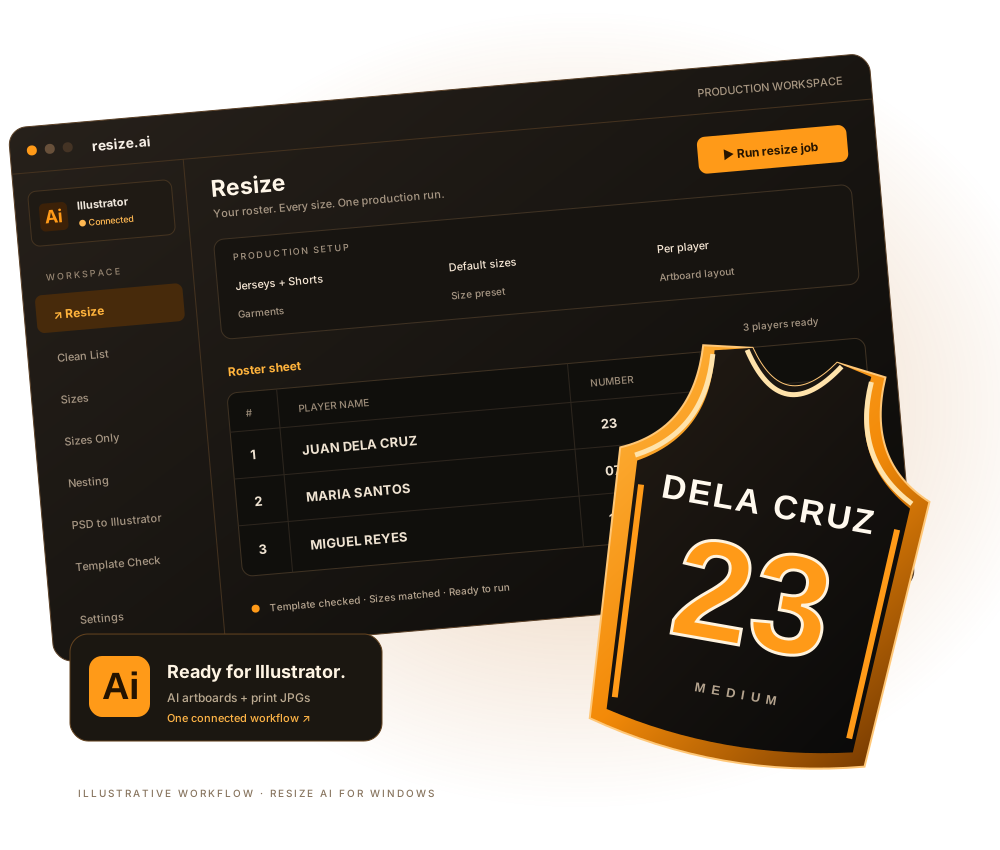
Illustration of the Resize AI roster workflow and personalized jersey output
What It Does

Your Illustrator workflow,
all in one place.

A connected set of desktop tools for preparing artwork and running jersey production in Adobe Illustrator.

Jersey & Shorts batch grids

Paste names, numbers, and sizes from Excel. Control columns, sorting, gaps, text widths, artboard output, resize layers, and separate jersey or shorts presets.

Presets & Sizes Only mode

Create, duplicate, rename, edit, and delete separate jersey, shorts, or sleeve presets. Generate selected size groups from XS to 7XL without names, numbers, or roster data.

Clean List before production

Clean messy roster names, numbers, and sizes, then send the corrected rows straight to the Resize · Jerseys. Custom roster columns and uppercase output are supported.

PSD to Illustrator with editable text

Drop in a PSD, preflight its canvas, layers, fonts, and effects, then create a native AI. Illustrator imports layers as objects, while Photoshop metadata helps rebuild text that imports as an image.

1
Browse or drop a PSD and choose the AI output
2
Review layers, fonts, effects, and conversion warnings
3
Rebuild editable text with missing-font handling
4
Open the converted AI and optionally hide its raster reference
Sleeves & custom “Others”

Resize sleeve groups or any custom grouped artwork from a chosen reference size. Set the source group, output prefix, selected sizes, columns, gaps, size text, and whether to hide the original source.

Template Check & preflight

Run a read-only check for player, num1, num2, and size placeholders. Review missing names, fix recognized placeholders, and check the layout before running. Settings includes license, Illustrator connection, grid defaults, and light/dark theme.

JPG export & Run History

Use Print, Proof, Web, or Custom JPG profiles with DPI, quality, color, filename, and optimization controls. Export CSV records, open a detailed completion report, and review recent jersey or shorts jobs in Run History.

Smart Nesting

Scan the active Illustrator document, set your sheet size and gaps, preview the arrangement, and run Nesting to place the artwork for production.

How It Works

Done in four simple steps.

From your active Illustrator template to personalized artboards and finished exports.

Step 1
Connect & check the template

Open the design in Illustrator, let the app auto-detect it, then verify the required placeholders with Template Check.

Step 2
Choose the job & preset

Paste a jersey or shorts roster, or choose Sleeves or Others in Sizes Only. Then select the correct size preset and source group.

Step 3
Preflight & run the batch

Review production warnings, output columns, gaps, and export settings. Start the run, with pause and cancel always available.

Step 4
Review AI, JPG & history

Open the generated Illustrator output, export JPG or CSV when needed, and review the completed job in Run History.

Explore the Workflow · Illustrative Preview

From roster to output.
One smooth flow.

Scroll through the steps or click any stage. The preview follows the real desktop workflow so you can see what happens before you download.

Size Presets

Your production sizes,
set exactly
your way.

Jersey, shorts, and sleeve presets are managed separately. Sizes Only also applies a selected preset to custom “Others” artwork using a chosen reference size.

Create, duplicate, rename, or delete presets, then generate Ready Size Groups from XS to 7XL or custom prefixed groups.
SizePreset supportWidthHeight
XSReady Size GroupFrom presetFrom preset
SReady Size GroupEditableEditable
MReady Size GroupEditableEditable
LReady Size GroupEditableEditable
XLReady Size GroupEditableEditable
2XLReady Size GroupEditableEditable
3XL–7XLExtended rangeEditableEditable
Pricing

Simple pricing.
Pay once, use it forever.

Start with a free trial. Upgrade once to Lifetime when you are ready—no yearly renewal and no monthly fee.

Free Trial
Free
One trial per computer · No credit card
All features fully unlocked
Jerseys, Shorts, Sleeves & Others
PSD to Illustrator conversion
Presets & Sizes Only mode
Preflight, JPG & Run History
Trial duration shown during activation
Download Free

The Lifetime license is locked to your computer with a key. Payment via GCash, Maya, or bank transfer — we'll send activation instructions after you reach out.

Before you start

Made for your Illustrator workflow.

What do I need to run Resize AI?

A 64-bit Windows 10 or 11 computer with Adobe Illustrator 2020 or newer installed. Illustrator 2021+ is recommended. Open Illustrator with your template active before starting a job.

How do I prepare my Illustrator template?

Use a top-level group named jersey or shorts. Name its text objects player, num1, num2 (optional), and size in the Layers panel. Run Template Check before production.

Can each player have a separate artboard?

Yes. In Resize, choose one artboard per player to keep their garments together, or one artboard per item for separate pieces. Choose your columns and spacing to fit the document canvas.

Can it convert Photoshop files to Illustrator?

PSD to Illustrator analyzes layers, fonts, and effects, then imports the PSD and saves an AI file. Text stays editable where supported. Complex text effects may keep their original appearance with a hidden editable text reference.

How does the free trial work?

Install the app and choose Start Trial in the license window. The app shows your activation status and expiry. One free trial is available per computer, shared across the Resize apps. Internet access is needed for activation.

Where can I find the setup instructions?

Follow the Illustrator getting-started guide for template naming, roster jobs, presets, Nesting, and output checks.